




Specifying Paper Size and Type
Solution
Set the paper size and paper type when printing from an application with which you cannot set the paper size and paper type. Make sure to change the paper settings when you load the paper that is different from the previously loaded paper.
IMPORTANT
- If the setting does not match the size and type of loaded paper, a paper jam or printing error may occur.
1. Display the <Paper Settings> screen.
 Touch Panel Model
Select <Paper Set.> in the Home screen.
5 Lines LCD ModelPress  (Paper Setting).
(Paper Setting).2. Select <Drawer 1>.
3. Select the paper size.
- If the loaded paper size is not displayed, select <Other Sizes>.
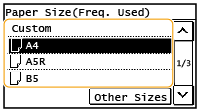
4. Select the paper type.
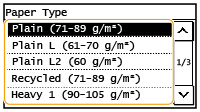
1. Display the <Paper Settings> screen.
Touch Panel ModelSelect <Paper Set.> in the Home screen.
5 Lines LCD ModelPress (Paper Setting).
(Paper Setting).2. Select <MP Tray>.
3. Select the paper size.
- If the loaded paper size is not displayed, select <Other Sizes>.
4. Select the paper type.
You can register one frequently used custom paper size.
1. Display the <Paper Settings> screen.
Touch Panel ModelSelect <Paper Set.> in the Home screen.
5 Lines LCD ModelPress (Paper Setting).
(Paper Setting).2. Select <MP Tray> or <Drawer 1>
 <Custom>.
<Custom>.3. Specify the length of the <X> side and <Y> side.
- Execute the following steps in sequence: <X>
enter the length of the <X> side using <
 > (
> ( ) / <
) / < > (
> ( )
<Apply> (
)
<Apply> ( )
<Y>
enter the length of the <Y> side
<Apply> ()
<Apply>
)
<Y>
enter the length of the <Y> side
<Apply> ()
<Apply>
Touch Panel Model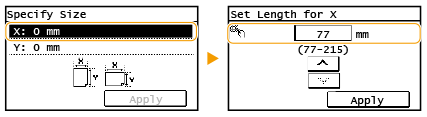 5 Lines LCD Model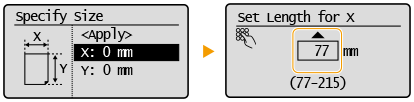
4. Select <Apply>.
5. Select the paper type.
You can ensure that only frequently used paper sizes are shown in the screen for selecting the paper size setting.
1. Display the <Paper Settings> screen.
Touch Panel ModelSelect <Paper Set.> in the Home screen.
5 Lines LCD ModelPress (Paper Setting).
(Paper Setting).2. Select <Select Frequently Used Paper Sizes>.
3. Select <Multi-Purpose Tray> or <Drawer 1>.
4. Clear the check boxes for paper sizes you do not want displayed.
- Ensure that only the check boxes for frequently used paper sizes are selected.

NOTE
- Paper sizes that are not selected can be viewed by selecting the <Other Sizes> in the paper size setting selection screen.
5. Select <Apply>.