




How to Use Slow Playback
Solution
The Slow playback backward/forward function can be accessed during playback pause.
The procedure for setting Slow playback backward/forward is explained below.
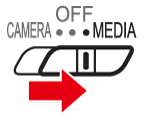
1. Set the power switch to <MEDIA>.
2. Drag left or right to select the desired scene, and then
  touch the scene to play it back.
Drag left or right to select the desired scene, and then touch the scene to play it back.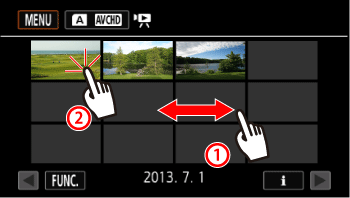
3. Touch the screen to display the playback controls.
4. Touch [  ] to pause the playback.
] to pause the playback.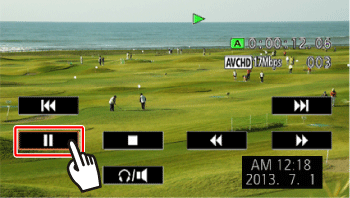
5. Touch [Slow playback backward/forward].
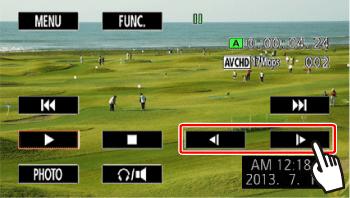
[  ]: Slow reverse playback
]: Slow reverse playback [  ]: Slow playback
]: Slow playbackTouch several times to increase the playback speed from 1/8 to 1/4 the normal speed.
In [Slow playback backward/forward] the camcorder will not emit any sound.
NOTE
- During slow playback / reverse slow playback, you may notice some anomalies (blocky video artifacts, banding, etc.) in the playback picture.
- Slow reverse playback will look the same as continuous frame reverse.
This concludes the procedure for setting Slow playback backward/forward.