




The Different Image Stabilization (IS) Modes and How to Set Them (VIXIA HF G20 / LEGRIA HF G25)
Solution
When in  (Auto) mode, the mark displayed will automatically change to the one for the set image stabilization mode depending on the shooting situation.
(Auto) mode, the mark displayed will automatically change to the one for the set image stabilization mode depending on the shooting situation. When in  (Manual) mode, the image stabilization mode can be selected according to how you are shooting.
(Manual) mode, the image stabilization mode can be selected according to how you are shooting. The different Intelligent IS marks in (Auto) mode and how to set the image stabilization in (Manual) mode are as follows.
(Auto) mode and how to set the image stabilization in (Manual) mode are as follows. NOTE
- Set automatically when the [Camera Mode] is set to (Auto).
| Icon | Shooting method |
|---|---|
 (Dynamic IS) (Dynamic IS) | Most general situations; Zooming out (zooming toward W); Following subjects at a distance moving left or right |
 (Powered IS)* (Powered IS)* | Zooming in (zooming toward T) |
 (Macro IS) (Macro IS) | Close-up of a subject |
 (Tripod mode) (Tripod mode) | Remaining stationary, such as when using a tripod |
1. Set the mode switch to <M> or <CINEMA>.

2. Turn on the camcorder.
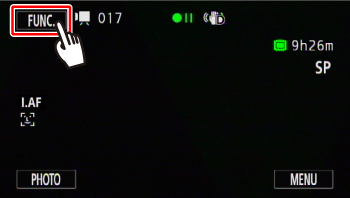
3. Touch [  ].
].
].
4.  Drag your finger up/down, and then
  touch [Image Stabilizer].
Drag your finger up/down, and then touch [Image Stabilizer].
5. Touch desired IS mode.
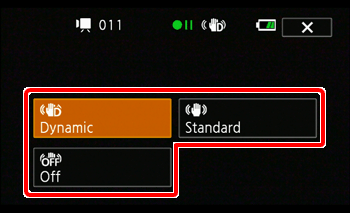
| IS mode | Shooting method |
|---|---|
 Dynamic Dynamic | Compensates for a higher degree of camcorder shake, such as when shooting while walking, and is more effective as the zoom approaches full wide angle. |
 Standard Standard | Compensates for a lower degree of camcorder shake, such as when shooting while remaining stationary, and is suitable for shooting natural-looking scenes. |
 Off Off | Use this setting when the camcorder is mounted on a tripod. |
6. Touch [  ].
].
].REFERENCE
Powered IS
- After setting an assignable button to [ Powered IS ], you can use Powered IS to make the image stabilization even more powerful. Powered IS is most effective when you are stationary and zooming in on far subjects using high zoom ratios (the more you approach the telephoto end). Holding the LCD panel with your left hand will add to the stability of the shot.
- Press and hold the assignable button as long as you want to activate Powered IS.
- () appears in yellow while Powered IS is activated.

NOTE
- If the degree of camcorder shake is too high, the image stabilizer may not be able to fully compensate.
- For surveying and following shots, when you pan the camcorder from side to side or tilt it up and down, we recommend setting [Image Stabilizer] to [Dynamic] or [Standard].
- Powered IS is available even when [Image Stabilizer] is set to [Off].