




How to Uninstall the Software (MF5730/MF5750/MF5770)
Solution
Before you remove the drivers, make sure the following:
- You have the installation software available for installation.
- No application is running on your computer.
IMPORTANT
Uninstallation in Windows 2000/XP/Server 2003 needs to be done by a user with administrator privileges.
 Removing the MF Toolbox
1. Quit the MF Toolbox and any applications (including anti-virus) that are currently running.
To close the MF Toolbox, click [X] at the top right of the MF Toolbox window.
2. Click [start] on the Windows task bar, then [(All) Programs], [Canon], [MF Toolbox 4.7], and [Uninstall Toolbox].
3. Follow the on-screen instructions.
When the Repair or Remove program selection screen is displayed, check [Remove] and click [Next].
If asked to confirm removal of an application etc., click [OK].
Restart your computer if asked to do so.
Removing the MF Drivers1. Click [start] on the Windows task bar, then [(All) Programs], [Canon], [MF Drivers], and [Uninstall Drivers].
The [MF Drivers Uninstaller] dialog box appears.
2. Select the corresponding printer, and click [Perform].

3. Click [Yes].

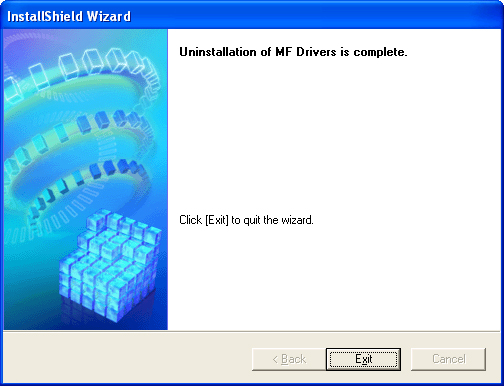
4. Click [Exit].
NOTE
A message recommending you to restart your computer may appear under some operating systems. In this case, continue installing after restarting your computer.