





IJ Printer Utility cannot be launched. (Macintosh)
Solution
- For Mac OS X 10.6
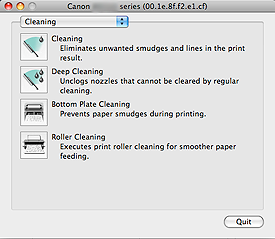
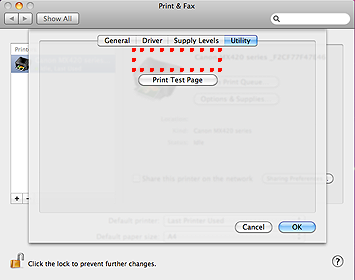
As there is no [Open Printer Utility] button, IJ Printer Utility cannot be launched.
- For Mac OS X 10.5
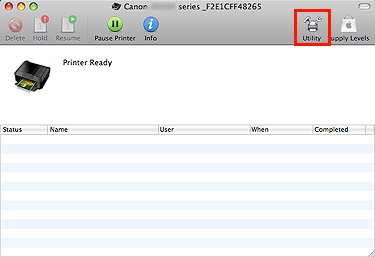
IJ Printer Utility cannot be launched from the [Utility] button in the print queue.
This phenomenon occurs per specifications when Bonjour printing is enabled.
Follow the procedures below to change the setting.
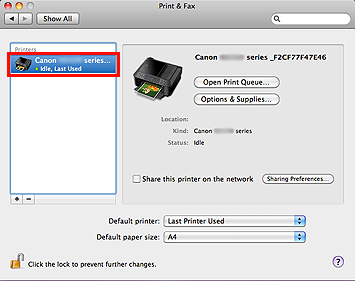
1. In the [Print & Fax] window, select the applicable print queue.
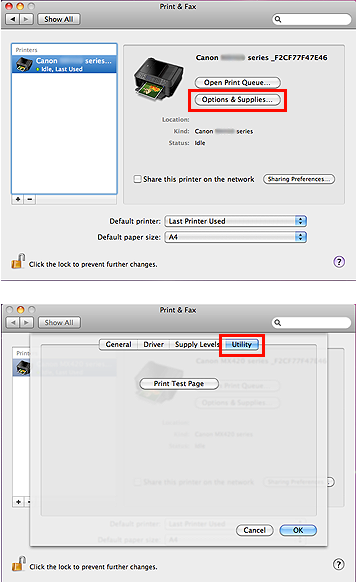
2. Click [Options & Supplies], then select [Utility].
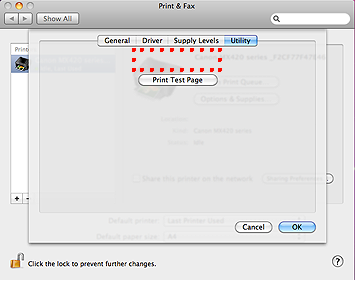
3. Confirm that there is no [Open Printer Utility] button.
IMPORTANT
When the [Open Printer Utility] button is displayed, the print queue you selected is incorrect. Return to the Step 1 to select the correct print queue again.
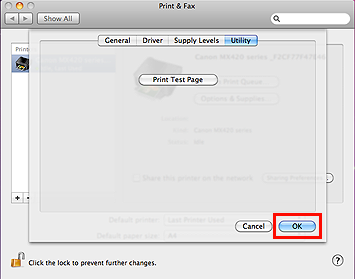
4. Click [OK], and return to the [Print & Fax] window.
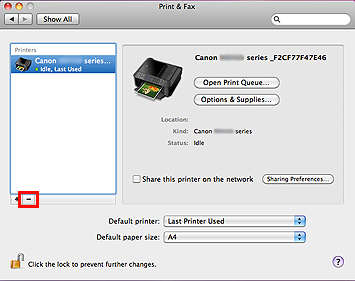
5. Click [-].
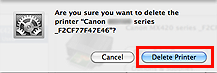
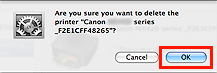
6. When the following message is displayed, click [Delete Printer].
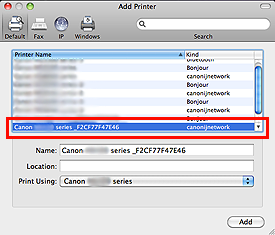
7. Click [+].

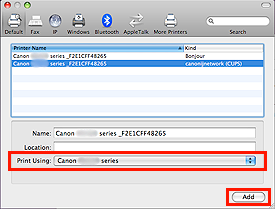
8. In the [Add Printer] window, select the printer with "canonijnetwork" in [Kind].
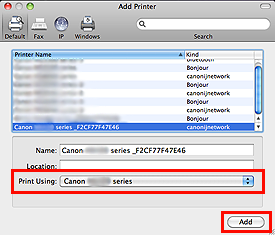
9. Confirm that the same printer is selected in [Print Using], then click [Add].
10. When you go back to the [Print & Fax] window, select the created print queue.

11. Click [Options & Supplies], then select [Utility].
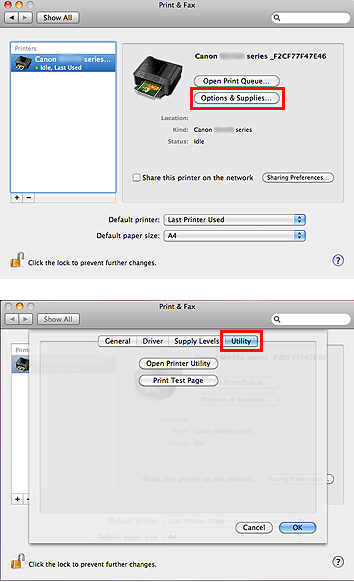
12. When the [Open Printer Utility] button is displayed, the change to the normal printing via network in Mac OS X 10.6 is completed.
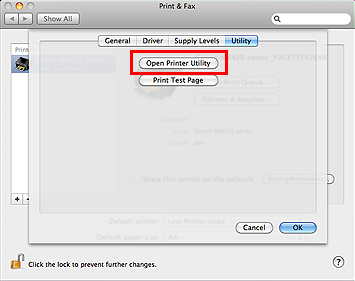
Follow the procedures below to change the setting.
1. In the [Print & Fax] window, select the applicable print queue.

2. Click [Open Print Queue
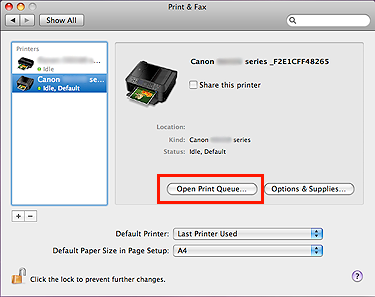
3. Click [Utility].

IMPORTANT
When the IJ Printer Utility dialog is displayed, the print queue you selected is incorrect. Return to the Step 1 to select the correct print queue again.
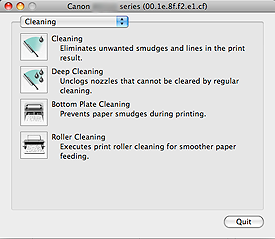
4. Close the print queue, and return to the [Print & Fax] window.
5. Click [-].
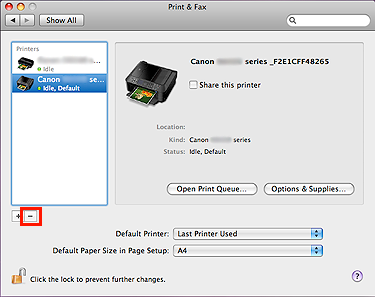
6. When the following message is displayed, click [Delete Printer].
7. Click [+].
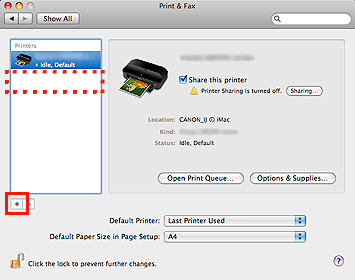
8. In the [Add Printer] window, select the printer with "canonijnetwork" in [Kind].

9. Confirm that the same printer is selected in [Print Using], then click [Add].
10. When you go back to the [Print & Fax] window, select the created print queue.
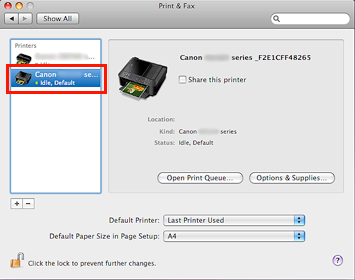
11. Click [Utility].
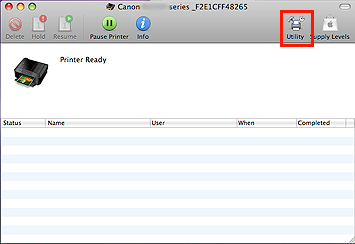
12. When the IJ Printer Utility dialog is displayed, the change to the normal printing via network in Mac OS X 10.5 is completed.