




Changing Color Properties to Improve Coloration
Solution
This feature is unavailable when the XPS printer driver is used.
The [Photo Optimizer PRO] function corrects colors of digital camera images or scanned images. It is specially designed to compensate for color shift, overexposure, and underexposure.
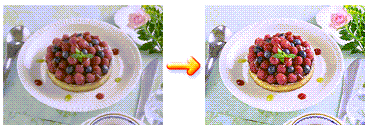
The procedure for performing [Photo Optimizer PRO] is as follows:
1. Open the printer driver setup window
2. Set Photo Optimizer PRO
Check the [Photo Optimizer PRO] check box on the [Effects] tab.
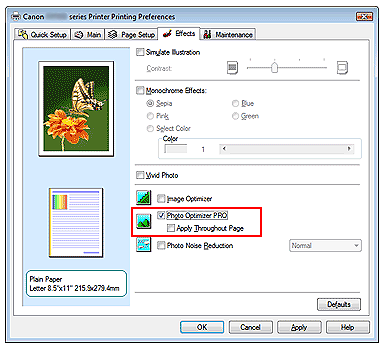
Normally there is no need to check the [Apply Throughout Page] check box.
Images within each page are optimized on an image-by-image basis.
REFERENCE
Check the [Apply Throughout Page] check box when printing image data that has been processed, such as being cropped or rotated. In this case the entire page will be treated as a single image to be optimized.
3. Complete the setup
Click [OK].
When you execute print, the printer corrects the photo coloring and prints out the photos.
IMPORTANT
- [Photo Optimizer PRO] does not function when:
- [Background] is set in the [Stamp/Background] dialog box on the [Page Setup] tab.
- [Define Stamp...] is selected in the [Stamp/Background] dialog box on the [Page Setup] tab, and the bitmapped stamp is configured.
REFERENCE
Depending on images, the [Photo Optimizer PRO] may have no discernible effect.