




Specifying the Setting for COLOR MODE
Solution
 Color Printing
1. From the printer properties dialog box, click the [Quality] tab.
2. Select [Color] from [Color Mode]. If you want to change color settings manually, specify [Manual Color Settings].
If you do not want to change color settings manually, proceed to Step 9.
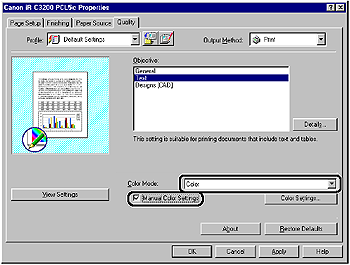
3. Click [Color Settings].
The [Color Settings] dialog box is displayed.
4. Display the [Color Adjustment] sheet.
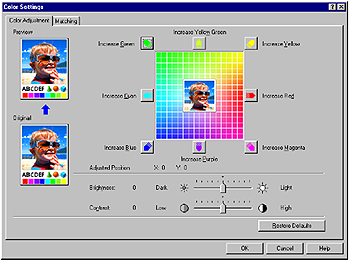
5. Adjust the color intensity, brightness, and contrast.
For detailed information about the [Color Adjustment] sheet, see the Online Help.
6. Click the [Matching] tab.
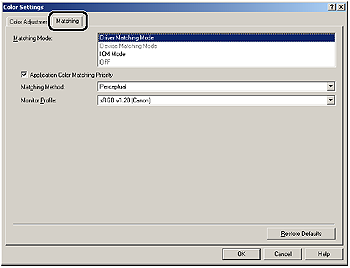
7. Specify the matching mode, the matching method, and the monitor profile.
For detailed information about the [Matching] sheet, see the Online Help.
8. Click [OK].
9. Click [OK] in the [Quality] sheet.
Grayscale Printing1. From the printer properties dialog box, click the [Quality] tab.
2. Select [Black and White] from [Color Mode]. If you want to change color settings manually, specify [Manual Color Settings].
If you do not want to change color settings manually, proceed to Step 8.
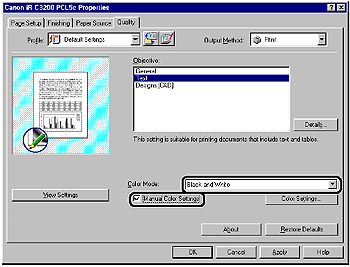
3. Click [Color Settings].
The [Color Settings] dialog box is displayed.
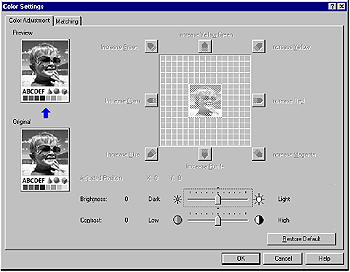
4. Adjust the brightness and contrast.
For detailed information about the [Color Adjustment] and [Grayscale Adjustment] sheets, see the Online Help.
5. Click the [Matching] tab.

6. Specify the matching mode, the matching method, and the monitor profile.
For detailed information about the [Matching] sheet, see the Online Help.
7. Click [OK].
8. Click [OK] in the [Quality] sheet.
COLOR MODE specifies whether to print in color or in black and white.
1. Move to the printer, then press [Settings] on the control panel.

2. Select QUALITY MENU using [  ] and [
  ], then press [OK].
] and [ ], then press [OK].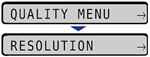
The item for QUALITY MENU is displayed.
3. Select COLOR MODE using [ ] and [ ], then press [OK].
] and [ ], then press [OK].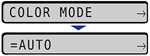
The setting value for COLOR MODE is displayed.
4. Specify the setting for COLOR MODE using [ ] and [ ], then press [OK].
] and [ ], then press [OK].If AUTO is specified, the printer automatically switches between color printing and black-and-white printing according to the document type.
If COLOR is specified, the printer prints using the four colors of KYMC (Black, Yellow, Magenta, and Cyan).
If BLACK & WHITE is specified, the printer prints in black and white even when printing a color document.

"=" is displayed on the left of the value, and the color mode is specified.