




Connecting to a Printer and Printing Via a Wireless LAN (EOS M5 / EOS M6)
Solution
Connect the camera to a printer via Wi-Fi to print as follows.
These steps show how to use the camera as an access point, but you can also use an existing access point.
IMPORTANT
- This camera requires a PictBridge-compatible printer (supporting DPS over IP) for printing via Wi-Fi.
- Procedures for connecting a camera to a printer and printing via Wi-Fi are explained in the following sections. For more information on making Wi-Fi settings on the printer, please refer to the printer’s instruction manual.
- In this example the procedure is shown on the PowerShot EOS M5. The position of buttons, screen indications, and setting items may vary by camera model.
NOTE
- Connections require that a memory card with saved images be in the camera.
- Follow these instructions when using the camera as an access point.
- To connect using another access point, please refer to the camera’s instruction manual.
1. Access the Wi-Fi menu.
- Move the power switch to [ON].
- Press the [
 ] button.
NOTE
When making Wi-Fi settings for the first time, a screen will appear for you to register a nickname for the camera.
This nickname will be displayed on the screen of target devices when connecting to other devices via Wi-Fi.
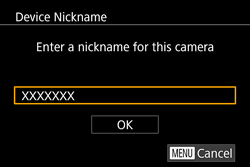
Press the [  ], [
], [  ] buttons to choose the [Nickname] filed, and then press the [
  ] button.
], [ ] buttons to choose the [Nickname] filed, and then press the [ ] button.Enter the nickname on the keyboard displayed. After you have finished entering it, press the [MENU] button to return to the registration screen, and then touch [OK].
2. Choose [  ].
].
].- Press the [
 ], [
], [  ], [ ], [ ] buttons or turn the [
  ] dial to choose [ ], and then press the [ ] button.
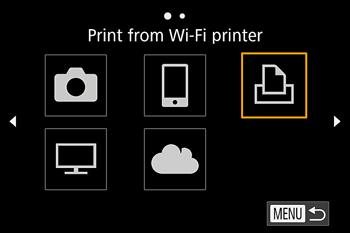
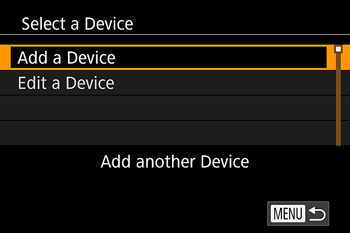
3. Choose [Add a Device].
- Press the [ ], [ ] buttons or turn the[ ] dial to choose [Add a Device], and then press the [ ] button.
NOTE
- Once a printer is added, the printer name will be displayed on the screen in step 3. To connect to a printer again, simply choose the printer name from the list.
- Once you have connected to devices via the Wi-Fi menu, recent destinations will be listed first when you access the Wi-Fi menu. You can easily connect again by pressing the [ ], [ ] buttons to choose the device and then pressing the [ ] button. To add a new device, display the device selection screen by pressing the [ ], [ ] buttons, and then configure the setting.
- If you prefer not to display recent target devices, choose MENU > [
 - 4] tab > [Wireless settings] > [Wi-Fi Settings] > [Target History] > [Off].
- The camera SSID and password are displayed.
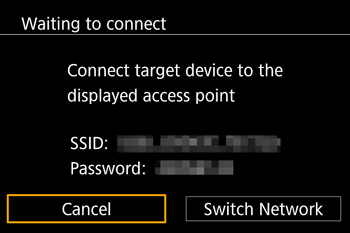
4. Connect the printer to the network.
- In the printer’s Wi-Fi setting menu, choose the SSID (network name) displayed on the camera to establish a connection.
5. Choose the printer.
- Choose the printer name (either press the [ ], [ ] buttons or turn the [ ] dial), and then press the [ ] button.
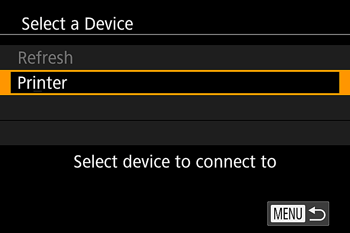
6. Once the printer has been registered, the following screen appears.
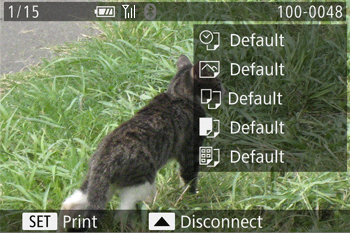
7. Press the [ ], [ ] buttons to choose an image.
], [ ] buttons to choose an image.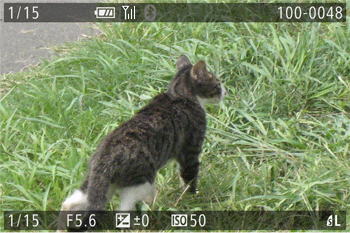
8. Press the camera’s [ ] button, choose [  ] and then press the [ ] button again.
] button, choose [ ] and then press the [ ] button again.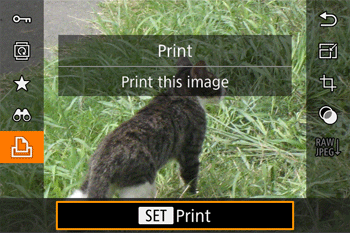
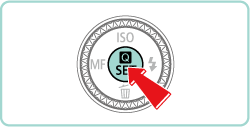
9. The screen for specifying the print settings appears.
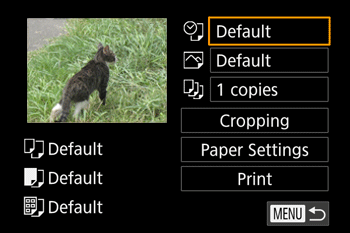
Press the [ ], [ ] buttons to choose an item, and then press the [ ] button. After the screen changes, press the [ ], [ ] buttons to choose the desired setting, and then press the [ ] button to return to the print screen.
], [ ] buttons to choose an item, and then press the [ ] button. After the screen changes, press the [ ], [ ] buttons to choose the desired setting, and then press the [ ] button to return to the print screen. | Default | Matches current printer settings. |
| Date | Prints images with the date added. | |
| File No. | Prints images with the file number added. | |
| Both | Prints images with both the date and file number added. | |
| Off | - | |
 | Default | Matches current printer settings. |
| Off | - | |
| On | Uses information from the time of shooting to print under optimal settings. | |
| Red-Eye 1 | Corrects red-eye. | |
 | No. of Copies | Choose the number of copies to print. |
| Cropping | - | Specify a desired image area to print. |
| Paper Settings | - | Specify the paper size, layout, and other details. |
The following example explains printing operations when [Paper Settings] has been selected.
- Press the [ ], [ ] buttons to choose [Paper Settings], then press the [ ] button.
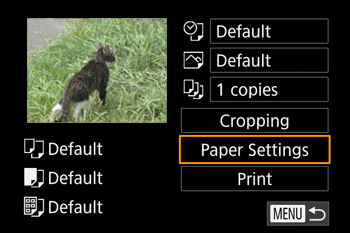

- The screen for specifying the paper size appears.
Press the [ ], [ ] buttons to choose an item, and then press the [ ] button.
], [ ] buttons to choose an item, and then press the [ ] button.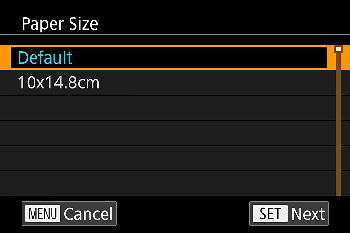
- The screen for setting the paper type appears.
Press the [ ], [ ] buttons to choose the paper type, then press the [ ] button.
], [ ] buttons to choose the paper type, then press the [ ] button.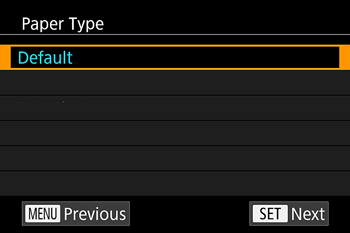
- The layout (border) settings screen appears.
Press the [ ], [ ] to choose the layout type, then press the [ ] button.
], [ ] to choose the layout type, then press the [ ] button.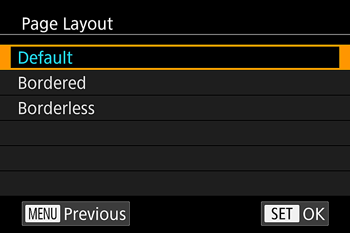
- The camera returns to the print setting screen.
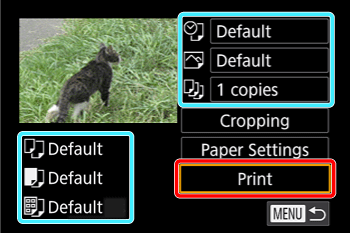
 Make sure that the settings are correct.
 Press the [ ] button with [Print] selected to begin printing.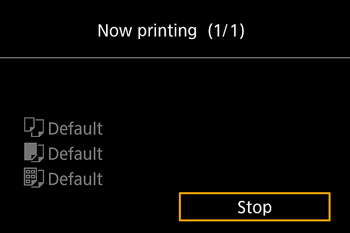
- Use the on-screen keyboard to enter wireless settings and other information. Note that the length and type of information you can enter varies depending on the function you are using.

| Entering Characters | •Touch the characters to enter them. |
| Moving the Cursor | •Touch 
 . . |
| Entering Line Breaks* | •Touch  . . |
| Switching Input Modes | •To switch to numbers or symbols, touch  . .•Touch  to enter capital letters. to enter capital letters.•Available input modes vary depending on the function you are using. |
| Deleting Characters | •Touch  to delete the previous character. to delete the previous character. |
| Confirming Input and Returning to the Previous Screen | •Press the [MENU] button. |
| *For some functions, is not displayed and cannot be used. | |