




Customizing Controls (Assigning Different Functions to Controls) (EOS-1D X Mark II)
Solution
You can assign often-used functions to camera buttons or dials according to your preferences.
1. Set the camera's power switch to < ON >.
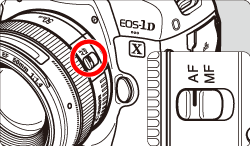
2. Set the lens's focus mode switch to < AF >.
3. Press the <MENU> button to display the menu.
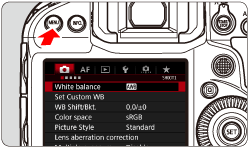
4. Under the [  ] tab, select [Custom Controls], then press <
  >.
>.
] tab, select [Custom Controls], then press < >.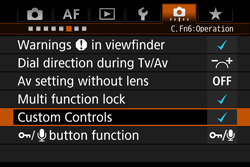
5. Turn the <  > dial to select a camera control, then press <
  >.
>.
> dial to select a camera control, then press < >.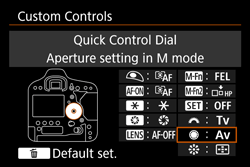
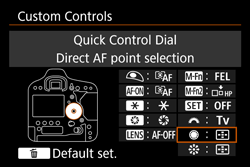
- The name of the camera control and the assignable functions will be displayed.
- The diagram on the left will show the location of the selected button or dial.
6. Turn the < > dial to select a function, then press < >.
> dial to select a function, then press < >.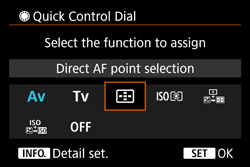
- If the
 icon appears on the screen's bottom left, you can press the < INFO. > button and set other related options.
7. When the setting change is complete, the screen for step 5 will reappear.
The camera control will be changed to the item set in step 6.
●Press the < MENU > button to exit.
NOTE
With the screen in step 5 displayed, you can press the [  ] button to revert the Custom Control settings to their defaults. Note that the [ : Custom Controls ] settings will not be canceled even if you select [
  : Clear all Custom Func. (C.Fn) ].
] button to revert the Custom Control settings to their defaults. Note that the [ : Custom Controls ] settings will not be canceled even if you select [ : Clear all Custom Func. (C.Fn) ].| Function |  |  |  |  |  |  |  |  |  |  |  | ||
| AF |  | Metering and AF start |  | *1 | *1 | | |||||||
 | AF stop | | | | | | |||||||
 | Switch to registered AF function | *2 | *2 | *2 | |||||||||
 | ONE SHOT  AI SERVO AI SERVO | *3 | *3 | *3 | *3 | *3 | |||||||
 | Switch to registered AF point | *3 | *3 | *3 | |||||||||
 | AF point direct selection | *4 | *5 | ||||||||||
 | Select AF point  | *6 | |||||||||||
 | Pause Movie Servo AF | | | | |||||||||
| Exposure |  | Metering start | | ||||||||||
 | AE lock | | | | | | | ||||||
| AE lock (while button pressed) | | |||||||||||
 | AE lock (hold) | | | | | | | ||||||
 | AE lock, AF stop | | | ||||||||||
 | FE lock | | | | | | |||||||
 | ISO speed | | |||||||||||
 | Set ISO Speed (hold button, turn ) | | |||||||||||
 | ISO speed ( during metering) | | |||||||||||
 | Set ISO,  | | |||||||||||
 | Exposure compensation (hold button, turn ) | | |||||||||||
 | Shutter speed setting in M mode | | | ||||||||||
 | Aperture setting in M mode | | | ||||||||||
| Function | | | | | | | | | | | | ||
| Images |  | Image size selection | | ||||||||||
 | One-touch image quality setting | *7 | *7 | *7 | |||||||||
 | One-touch image quality (hold) | *7 | *7 | *7 | |||||||||
 | Record function+card/folder selection | | |||||||||||
 | Picture Style | | |||||||||||
 | White balance selection | | |||||||||||
| Operation |  | Depth-of-field preview | | | |||||||||
 | IS start | | | | |||||||||
 | Menu display | | |||||||||||
 | Register/recall shooting function | *8 | *8 | ||||||||||
 | Unlock while button pressed | | | ||||||||||
 | Start movie recording (when  set) set) | | | | | ||||||||
 | Switch to Custom shooting mode | | |||||||||||
 | Image replay | | |||||||||||
 | Magnify/Reduce (press SET, turn ) | | |||||||||||
 | Magnify/Reduce button | | | ||||||||||
 | Playback button | | | ||||||||||
 | Info button | | | ||||||||||
 | Erase button | | | ||||||||||
 | Protect button | | | ||||||||||
 | Cycle between the set functions | *9 | |||||||||||
 | Flash function settings | | |||||||||||
 | No function (disabled) | | | | | | | | | | |||
> button, pressing the < INFO. > button while the setting screen is displayed will enable you to set the detailed AF settings. When shooting, pressing the < AF-ON > or < > button will perform AF as it was set.*2: With the setting screen displayed, press the < INFO. > button to display the detailed settings screen. Turn the <
> or <  > dial to select the parameter to be registered, then press < > to add a checkmark [
  ]. When you select a parameter, then press < >, you can adjust the parameter setting. By pressing the < > button, you can revert the settings to their defaults.
*3: With the setting screen displayed, when you press the < INFO. > button, you can select [Switch only when btn is held] or [Switch each time btn is pressed].
*4: With the Quick Control Dial setting screen displayed, you can press the < INFO. > button, then set the direction for switching the AF point for when the <
> dial is turned. The [Direction: AF point switching] settings for [Horizontal] and [Vertical] will work for Single-point Spot AF, Single-point AF, Man. select.: AF point expansion, and Expand AF area: Surround. The [Direction: Zone AF frame switch] settings for [Cycle through the zones], [Horizontal], and [Vertical] will work with Zone AF.*5: On the Multi-controller setting screen, press the < INFO. > button and you can select the AF point ([ Switch to center AF point ] or [ Switch to registered AF point ]) the camera switches to when you press the center of <
>.*6: With the setting screen displayed, you can press the < INFO. > button, then set the direction for switching the AF point for when the <
> dial is turned. The [Direction: AF point switching] settings for [Horizontal] and [Vertical] will work for Single-point Spot AF, Single-point AF, Man. select.: AF point expansion, and Expand AF area: Surround. The [Direction: Zone AF frame switch] settings for [Cycle through the zones], [Horizontal], and [Vertical] will work with Zone AF.*7: With the setting screen displayed, by pressing the < INFO. > button, you can set the image size for this function.
*8: With the setting screen displayed, press the < INFO. > button to display the detailed settings screen. Turn the <
> or < > dial to select the function to be registered, then press < > to add a checkmark [ ]. When you select a function, then press < >, you can adjust the setting. By pressing the < > button, you can revert the settings to their defaults. By selecting [Register current settings], the camera's current settings will be registered.*9: With the setting screen displayed, press the < INFO. > button to display the detailed settings screen. You can select the functions to switch. Turn the <
> dial to select the desired function, then press < > to add a checkmark [ ]. Then select [OK] to register the setting.NOTE
stands for the [ AF stop button ] provided on super telephoto lenses equipped with Image Stabilizer.