




Simultaneous Recording of MXF and MP4 Clips (XF200 / XF205)
Solution
Setting the video format to MXF+MP4, you can record simultaneously clips in MXF format and clips in MP4 format. When the video format is set to MXF+MP4, start and stop recording the MXF clip with the START/STOP button, as usual. You can select whether that action would automatically record also an MP4 clip (MXF+MP4 simultaneous recording) or whether to assign a separate control to start and stop recording MP4 clips (MP4 backup recording).
MXF+MP4 Simultaneous Recording: The camcorder will record the same scene in two different formats.
MP4 Backup Recording: The camcorder will keep recording continuously in MP4 format, ensuring that you never miss important shooting opportunities. You can set the [Bit Rate/Resolution] setting of MP4 clips to [3 Mbps 640x360] or link it to the video configuration of the MXF clips.
Simultaneous recording of MP4 clips is explained in the following sections.
For more information on MP4 backup recording, please refer to Setting the camcorder to record continuously in MP4 format (MP4 Backup Recording) (XF200 / XF205).
1. Hold down the button on the <POWER> switch and slide the switch to <CAMERA>.

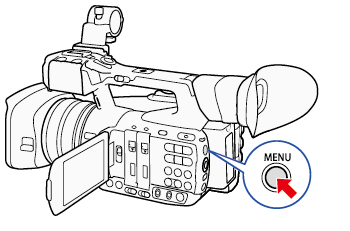
2. Press the <MENU> button.
3. Set the video format to [MXF (CF)+MP4  ].
].
]. Push the joystick up/down to select [  Other Functions] -> [Movie Format].
Other Functions] -> [Movie Format]. Select [MXF (CF)+MP4 ] and press <SET>.
] and press <SET>.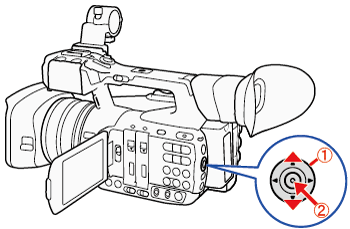
 : Joystick
 : In the following procedures, 'Press <SET>' refers to the action of pressing the joystick straight down to select the desired setting.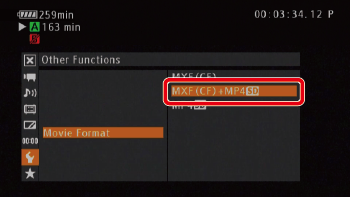
The time code running mode will change to [Free Run] and start advancing.
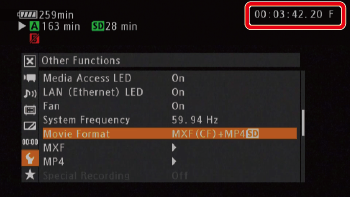
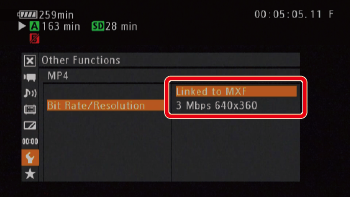
4. Open the MP4 [Bit Rate/resolution] submenu.
Select [ Other Functions] -> [MP4].
Other Functions] -> [MP4].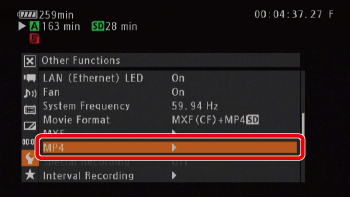
Select [Bit Rate/resolution].
Select one of the options below:
- [Linked to MXF]: Settings will be automatically determined according to the MXF bit rate and resolution.
- [3 Mbps 640x360]: Recording will be set to 3 Mbps 640×360.
Video configurations of MXF clips and MP4 clips are shown in the table below.
| MXF Clips | MP4 Clips | ||||||
|---|---|---|---|---|---|---|---|
| [Bit Rate/Resolution] in MXF+MP4 mode | |||||||
| [Bit Rate/Resolution] set to [Linked to MXF] | [Bit Rate/Resolution] set to [3 Mbps 640x360] | ||||||
| Bit rate | Resolution | Frame rate | Bit rate | Resolution | Frame rate | Bit rate/ Resolution | Frame rate |
| 50 Mbps | 1920×1080 | 50.00i | 35 Mbps | 1920×1080 | 50.00P | 3 Mbps / 640×360 | 25.00P |
| 25.00P | 24 Mbps | 25.00P | |||||
| 1280×720 | 50.00P | 17 Mbps | 1280×720 | 50.00P | |||
| 25.00P | 9 Mbps | 25.00P | |||||
| 35 Mbps | 1920×1080 | 50.00i | 35 Mbps | 1920×1080 | 50.00P | ||
| 25.00P | 24 Mbps | 25.00P | |||||
| 1440×1080 | 50.00i | 35 Mbps | 50.00P | ||||
| 1280×720 | 50.00P | 17 Mbps | 1280×720 | ||||
| 25.00P | 9 Mbps | 25.00P | |||||
| 25 Mbps | 1440×1080 | 50.00i | 35 Mbps | 1920×1080 | 50.00P | ||
| 25.00P | 24 Mbps | 25.00P | |||||
5. Open the MP4 [Rec Control] submenu.
Select [ Other Functions] -> [MP4] -> [Rec Control].
Other Functions] -> [MP4] -> [Rec Control].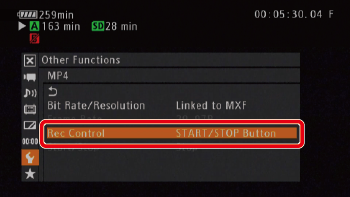
Select the [START/STOP button] then press <SET>.
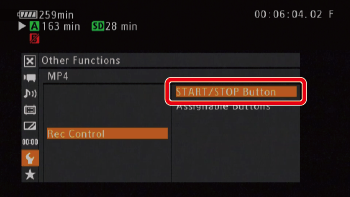
6. Begin recording.
Press the < START/STOP > button.
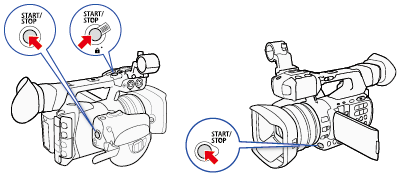
MXF+MP4 simultaneous recording will begin. [STBY] changes to [  REC] and [MP4] changes to [ MP4] on the screen.
REC] and [MP4] changes to [ MP4] on the screen.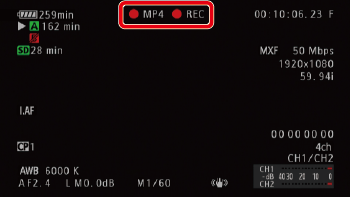
7. End recording.
Press the < START/STOP > button.
MXF+MP4 simultaneous recording will end. [ REC] changes to [STBY] and [ MP4] will no longer be displayed.
REC] changes to [STBY] and [ MP4] will no longer be displayed.NOTE
- If any memory card becomes full during MXF+MP4 simultaneous recording, recording will stop on all recording media. If a memory card becomes full during MP4 backup recording, recording will stop only on the memory card that is full and continue on other recording media.
- Simultaneous recording cannot be used together with other special recording modes or real-time proxy transfer mode.
- While recording, the [Free Run] time code will be recorded with the MXF clip.