



Decorating scenes during playback (VIXIA mini X)
Solution
Add a new level of enjoyment while playing back your scenes by decorating them. You can add animated graphics, stamps and even your own freehand drawing easily just by simply using your fingertip.
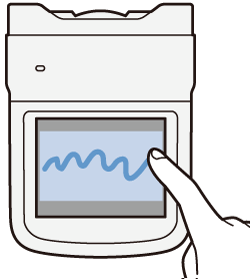
REFERENCE
- If you want to decorate a previously recorded scene and save the decorations, convert the scene to MP4 and decorate it during the conversion. For more information, please refer to Adding Decorations to Recorded Scenes (VIXIA mini X)
- For details on playing back movies, please see Playing back the scene you want to see (VIXIA mini X / LEGRIA mini X)
1. Press the < > button to set the camcorder to <Playback> mode.
> button to set the camcorder to <Playback> mode.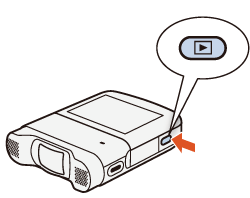
2. Play back the scene you want to decorate.
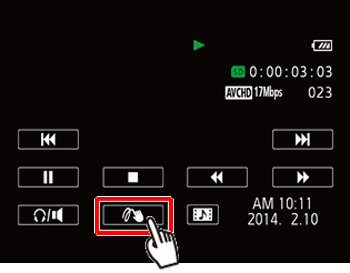
3. Touch the screen to display the playback controls.
4. Touch [  ].
].
].
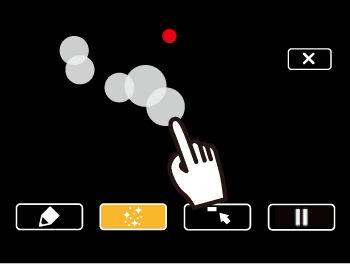
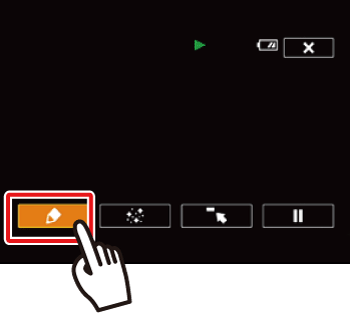
5. The decoration toolbar will be displayed.
 Canvas - The area where you will draw and see your decorations in action.
 Toolbar - You can decorate the scene using the tools from the toolbar.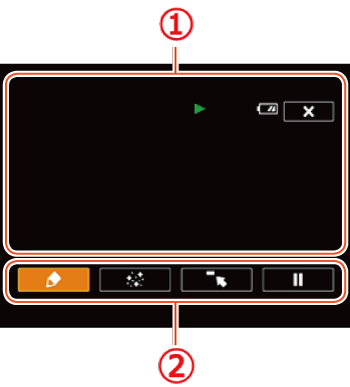
| Tool Icon | Tool Name | Features |
|---|---|---|
 | Pens and Stamps] | Select the type of pen or stamp and its color. You can also save a single canvas or load a previously saved canvas. |
 | Animated Stamps | Select animated stamps to add to your decoration. |
 | Minimize the toolbar | Minimize the toolbar to the top of the screen to view almost all of the canvas. Touch  to restore the toolbar. to restore the toolbar. |
 | Pause the playback | To save your freehand drawings and stamps on the memory card, or to load a previously saved canvas (freehand drawings and stamps only) from the memory card, You will need to pause the playback. |
6. Decorate the scene using the tools from the toolbar.
7. Touch [  ] to exit the decoration screen.
] to exit the decoration screen.1. Touch [ ].
].
The [Pens and Stamps] screen will appear.
2. Touch the desired pen or stamp from [Tools].
The main decoration screen will appear again.
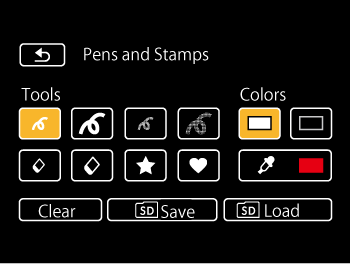
- To change color:
Touch [ ].
].Touch the white or black button under [Colors]. Alternatively, touch [  ] and select a color from the color palette.
] and select a color from the color palette.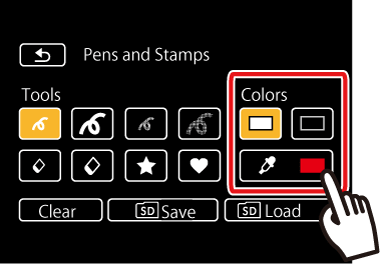
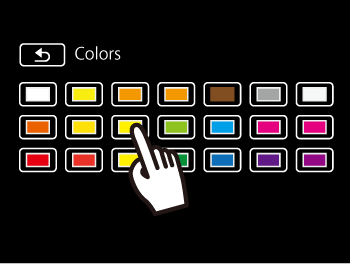
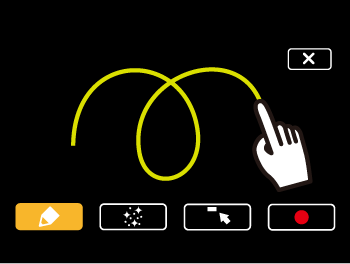
3. Draw freely on the canvas with your fingertip.
REFERENCE
- To clear your freehand drawings and stamps: Touch [ ] > [Clear] > [Yes] > [
 ].
]. - To use the [Eraser] tool:
1. Touch [ ] > [  ], or [
  ].
].
] > [ ], or [ ].2. Draw over your freehand drawings and stamps to erase them.
NOTE
The [Pen and Stamps] can be deleted, saved, and loaded.
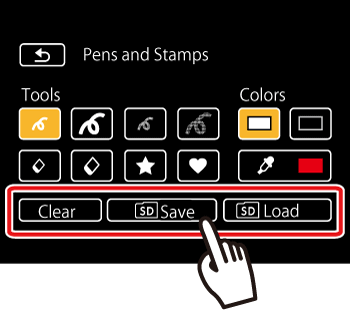
To save your freehand drawings and stamps on the memory card: Touch [ ] > [  Save] > [Yes] > [ ].
] > [ Save] > [Yes] > [ ]. To load a previously saved canvas (freehand drawings and stamps only) from the memory card: Touch [ ] > [ Load] > [Yes] > [ ].
] > [ Load] > [Yes] > [ ]. - You can save [Pen and Stamps] you have just created.
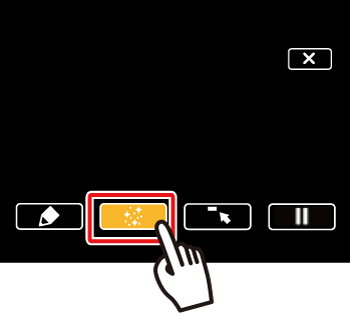
1. Touch [ ].
].
2. The [Animated Stamps] screen will appear. Touch one of the buttons.
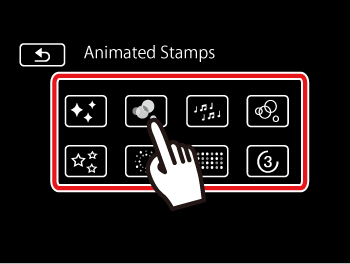
3. Touch anywhere on the canvas to place the selected animated stamp. You can also drag some animated stamps to a different location.