




How to Operate the Two-Sided Copying (2 to 1-Sided) (MF6550)
Solution
NOTE
a. This feature can be used together with both Collate Copy and 2 on 1 Combination.
b. Paper used to make two-sided copies must conform to the following specifications:
- Paper size: A4 (LGL and LTR loaded on the multi-purpose tray are available as well.)
- Paper weight: 64 to 90 g/m2
2 to 1-Sided
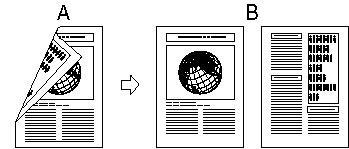
(B): Copies
You can make one-sided copies from two-sided documents.
1. Set documents.
2. Press [COPY].
3. Press [Two-Sided].
4. Press [Left cursor] or [Right cursor] to select [2 - 1-SIDED], then press [OK].
5. Press [Left cursor] or [Right cursor] to select [BOOK TYPE] or [CALENDAR TYPE], then press [OK].
[BOOK TYPE]: The front and back sides of the document have the same top-bottom orientation.
[CALENDAR TYPE]: The front and back sides of the document have opposite top-bottom orientations.
6. Press [Start].
To cancel all settings, press [Reset].
NOTE
When you set the document on the platen glass, press [Start] for each document. When scanning is complete, press [OK].