




Cleaning the Printhead (iPF8300S)
Solution
If printing is faint, cleaning the Printhead may improve results.
Choose one of two Printhead cleaning modes ( [Head Cleaning A] or [Head Cleaning B] ), depending on the problem to resolve.
- Head Cleaning A
Use this mode if printing is faint or contains foreign substances. This method of cleaning consumes the least amount of ink.
It takes about four minutes to complete.
- Head Cleaning B
Use this mode if no ink is ejected at all, or if [Head Cleaning A] does not solve the problem.
It takes about five minutes to complete.
IMPORTANT
- Do not remove the Maintenance Cartridge or ink tanks during either [Head Cleaning A] or [Head Cleaning B].
Ink may leak or an error may occur.
- If printing does not improve even if you execute [Head Cleaning B], try repeating [Head Cleaning B] once or twice. If this still does not improve printing, the Printhead may have reached the end of its useful life. Contact the Canon Help Desk for assistance.
NOTE
- Nozzles are periodically checked to ensure they are clear. Configure the settings on the Control Panel menu in [Nozzle Check].
Perform cleaning as follows.
1.On the [Tab Selection screen] of the Control Panel, press  or
or  to select the Settings/Adj. tab (
 ).
).
or to select the Settings/Adj. tab ().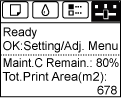
NOTE
- If the [Tab Selection screen] is not displayed, press the [Menu] button.
2.Press the [OK] button.
The [Set./Adj. Menu] is displayed.
3.Press  or
or  to select [Maintenance], and then press the [OK] button.
or to select [Maintenance], and then press the [OK] button.4.Press  or
or  to select [Head Cleaning], and then press the [OK] button.
or to select [Head Cleaning], and then press the [OK] button.5.Press  or
or  to select [Head Cleaning A] or [Head Cleaning B], and then press the [OK] button.
or to select [Head Cleaning A] or [Head Cleaning B], and then press the [OK] button.Head cleaning is now executed.
6.Print a test pattern to check the nozzles, and determine whether cleaning has cleared the nozzles.