




How to Set the Peaking (Emphasizing the Outline of Objects) Color, Gain, and Frequency? (XF305/XF300)
Solution
This section explains the details on how to set the peaking (emphasizing the outline of objects) color, gain, and frequency.
NOTE
There are two peaking levels: [Peaking 1] and [Peaking 2]. You can press the <MENU> button to display the [LCD/VF Setup] menu, and then press [Select] to switch between the peaking levels.
Hold down the button on the <POWER> switch and move it to <CAMERA>.

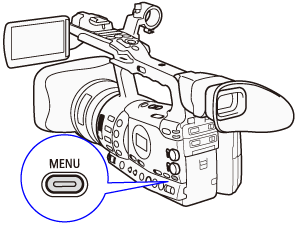
1. Press the <MENU> button.
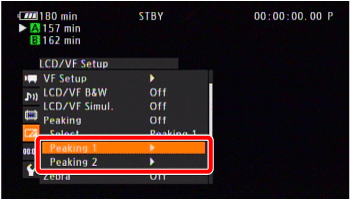
2. Select [LCD/VF Setup] -> [Peaking 1] -> [Peaking 2] in that order.
Push the <joystick> up/down or turn the <SELECT> dial to select the desired submenu, and then press <SET>.

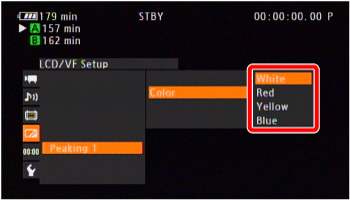
3. Select the color and then press <SET>.
[White], [Red], [Yellow], [Blue]
4. Press the <MENU> button to close the menu.
1. Press the <MENU> button.
2. Select [LCD/VF Setup] -> [Peaking 1] or [Peaking 2] in that order.
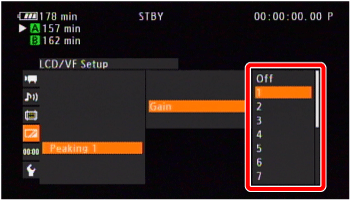
3. Select [Gain], and then select [Off] or any value between [1] to [15].
4. Press the <MENU> button to close the menu.
1. Press the <MENU> button.
2. Select [LCD/VF Setup] -> [Peaking 1] or [Peaking 2] in that order.
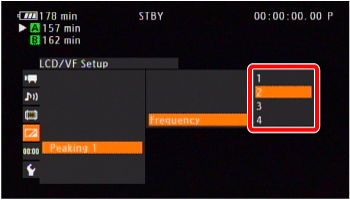
3. Select [Frequency], and then select from [1] to [4].
4. Press the <MENU> button to close the menu.